
Discord AutoMod is Discord's built-in moderation system that blocks harmful messages before they ever appear in your server. After managing multiple Discord communities for years, we can say it is the single best first step for any server owner who wants automated protection without relying on a bot. You configure it in Server Settings under Safety Setup, where you set up rules for keyword filtering, spam detection, and mention limits. Each rule lets you choose a response: block the message, alert your mod team, or automatically timeout the user. Setup takes less than 10 minutes.
Key Takeaways
- Discord AutoMod blocks harmful messages before they are posted, no bot required
- Five rule types cover keyword filters, spam detection, preset word lists, mention spam, and member profiles
- You can block messages, send alerts to a mod channel, or auto-timeout users for up to 1 week
- Custom keyword rules support wildcards and regex patterns for precise filtering
- Built-in AutoMod handles the basics, but bots are still needed for image spam, raids, and advanced logging
Table of Contents
What is Discord AutoMod
Before Discord released AutoMod in June 2022, server owners relied entirely on bots for automated moderation. You added a bot, configured its filters, and hoped it stayed online. If the bot went down or its hosting expired, your server was unprotected until someone noticed. There was simply no other option.
AutoMod changed that. It runs on Discord's own infrastructure, so it is always active as long as your server exists. There is no bot to invite, no external service to depend on, and no delay between a message being sent and being checked.
The biggest difference is that AutoMod blocks messages before they appear. When a message matches one of your rules, Discord prevents it from being posted entirely. The sender sees an error explaining what went wrong, but no one else in the channel sees anything. Bots, by comparison, can only delete messages after they have been sent. That means your members might see harmful content for a few seconds before the bot catches up.
AutoMod does not replace moderation bots entirely. It covers the fundamentals like word filtering, spam prevention, and mention limits. For more advanced features like image scanning, raid detection, or case management, you still need a bot. The general consensus among server owners on Reddit is the same: "Most spam can be countered with AutoMod," but for everything else, you need a supplementary tool. As a first line of defense, AutoMod is reliable and always on.
How to Access AutoMod
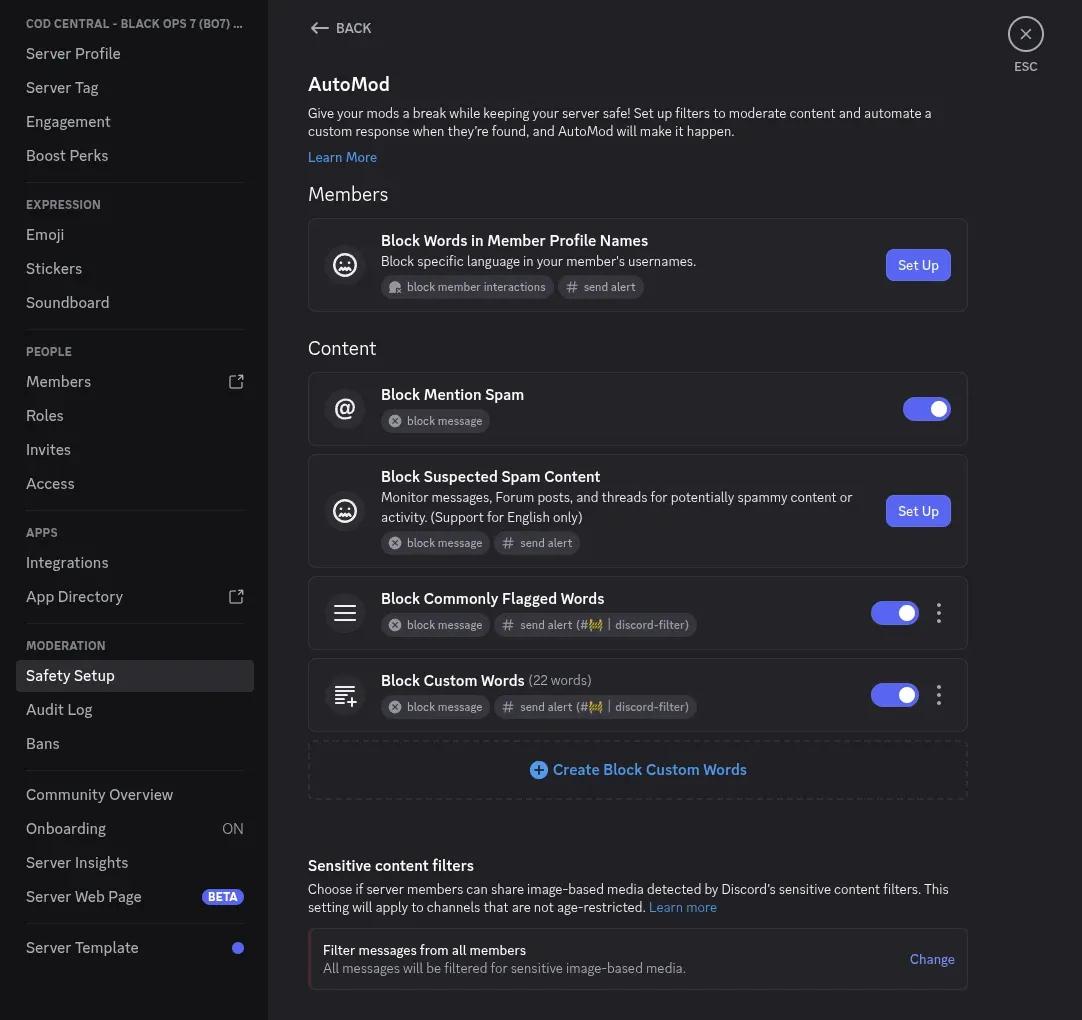
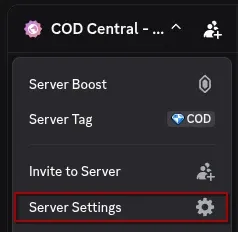
Click your server name at the top of the channel list and select "Server Settings." From there, scroll down to the Moderation section in the sidebar and click "Safety Setup." AutoMod is one of the options inside Safety Setup.
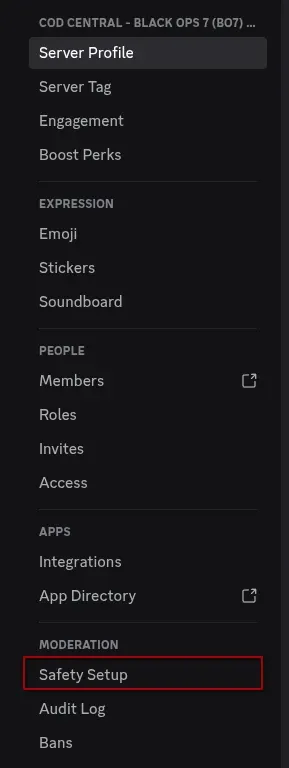
You need the "Manage Server" or "Administrator" permission to configure AutoMod rules. If you do not see the Safety Setup option, your account does not have the right permissions on that server.
Before setting up any rules, create a private text channel for AutoMod alerts. Name it #automod-alerts or #mod-logs. Give your staff view access but remove their ability to delete messages. This keeps your moderation logs permanent and tamper-proof.
The 5 Rule Types
Discord AutoMod offers five types of rules. Here is what each one does and how many you can create per server:
| Rule Type | Max Rules | What It Filters |
|---|---|---|
| Mention Spam | 1 | Messages with too many unique @mentions |
| Spam Detection | 1 | ML-detected spam content and patterns |
| Commonly Flagged Words | 1 | Profanity, slurs, and sexual content (Discord presets) |
| Custom Keywords | 6 | Your own word and phrase lists (1,000 entries each) |
| Member Profile | 1 | Blocked words in usernames and display names |
Mention Spam
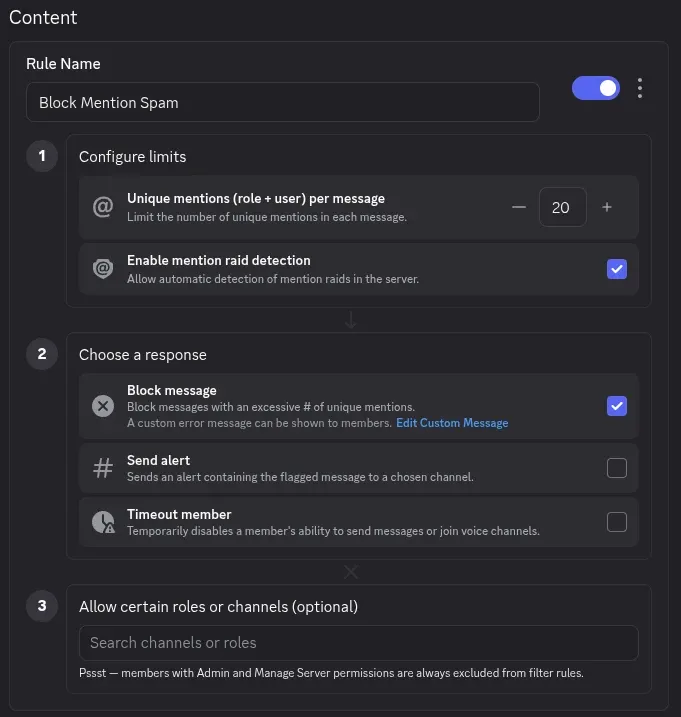
Blocks messages that mention too many unique users or roles in a single message. You set a limit (up to 50), and any message exceeding it gets blocked. Somewhere between 4 and 20 works for most servers, depending on how active your community is. This rule also includes a mention raid detection toggle that catches coordinated mention attacks across multiple accounts.
Spam Detection
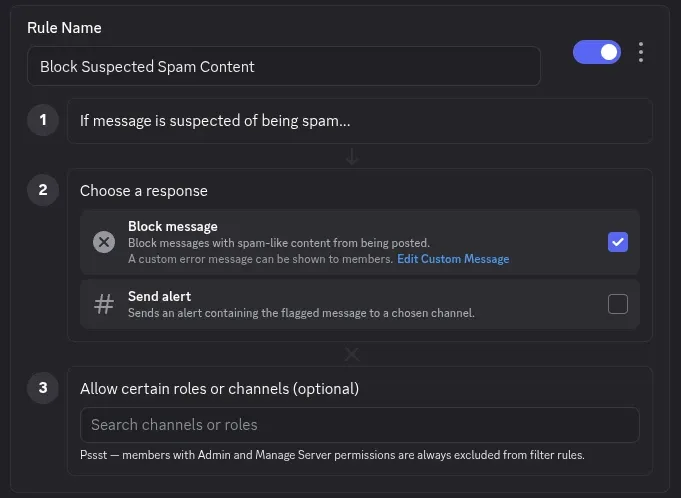
Uses Discord's machine learning to identify spam patterns. You cannot configure what it detects. It is trained on known spam behavior across all Discord servers and updates automatically. Enable it, set your response action, and let it run.
Commonly Flagged Words
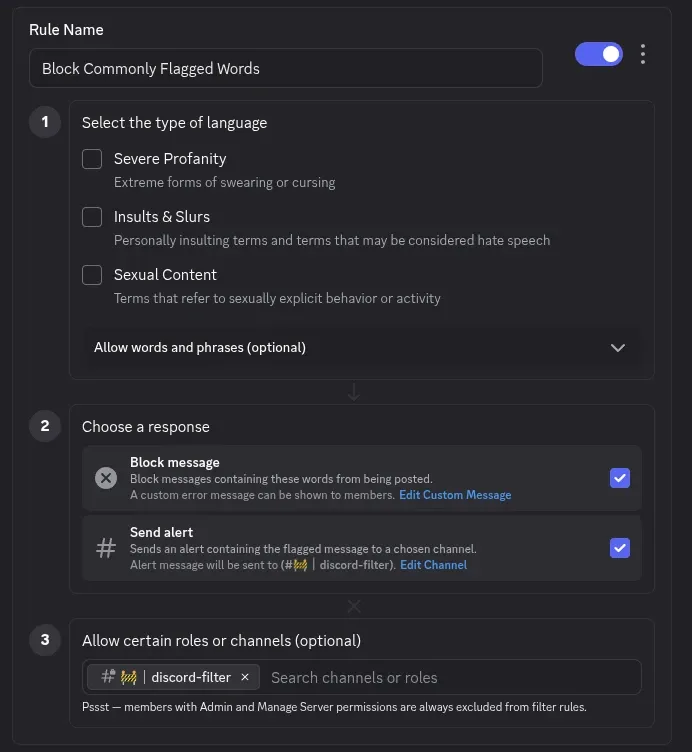
Discord maintains pre-built word lists for three categories: Severe Profanity, Insults and Slurs, and Sexual Content. You can enable any combination and add up to 1,000 words to an allow list for terms that get false-flagged. Be aware that these presets are broad. We cover why that matters and what to do about it in step 4 of the setup guide below.
Custom Keywords
The most flexible rule type. You get up to 6 separate rules, each with 1,000 keywords and 10 regex patterns. This is where you block server-specific terms, scam phrases, unwanted links, or anything else your community deals with. Wildcards let you match partial words, and regex patterns handle more complex filtering. More on both of those in the wildcards section below.
Two keywords that belong in every custom list: @everyone and @here. These mention types are frequently used by scammers and compromised accounts to get maximum visibility for their spam. Blocking them through AutoMod prevents regular members from mass-pinging your entire server, which is one of the most common attack patterns.
Member Profile
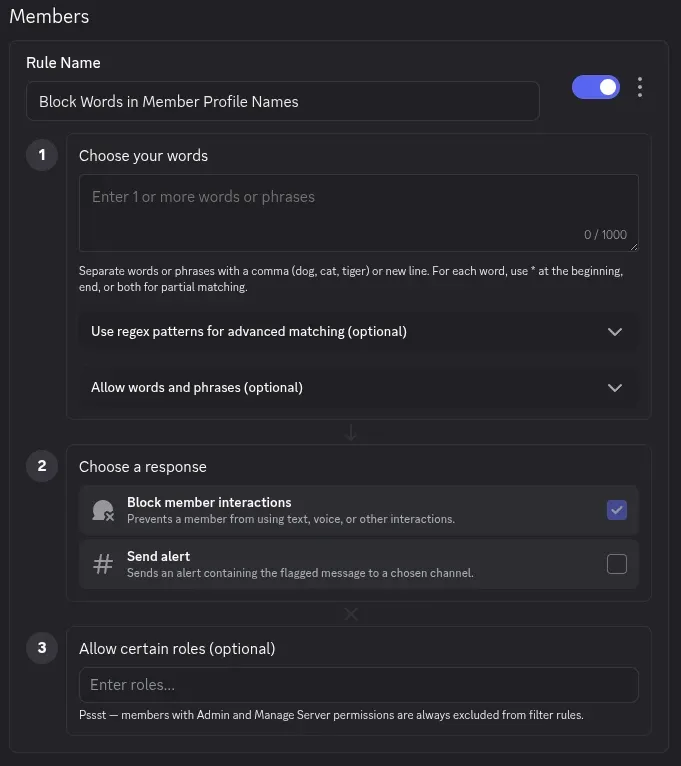
Scans usernames and display names for blocked words. Useful for stopping impersonation or blocking offensive names. When someone joins or updates their profile with a name that matches your filters, Discord can block their interactions until they change it.
Actions: Block, Alert, and Timeout
Each rule can trigger one or more actions when a message matches:
Block Message prevents the message from being posted. You can add a custom explanation (up to 150 characters) that the sender sees. Example: "Your message was blocked. Links are not allowed in this channel."
Send Alert logs the blocked message content, the user who sent it, and the rule that triggered to your alerts channel. Your mod team can review what happened and decide if further action is needed.
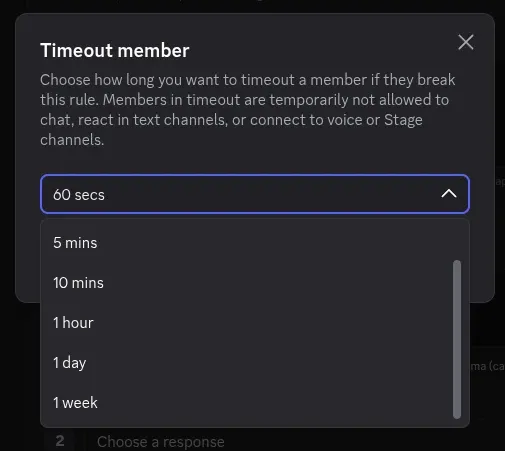
Timeout automatically mutes the user for a set duration. The available options are 60 seconds, 5 minutes, 10 minutes, 1 hour, 1 day, and 1 week. The user cannot send messages, react, or join voice or Stage channels during the timeout.
Block Member Interaction is a newer action that prevents a member from using text, voice, or other interactions entirely.
For most rules, enabling both Block Message and Send Alert is the safest combination. Blocking alone stops the content but gives your team no visibility into what is happening. Alerts alone let harmful messages through while your team reviews them. Using both gives you immediate protection with full audit trails.
Step-by-Step Setup
Here is a practical setup order that works for most servers. Follow each step in your Server Settings under AutoMod.
1. Create Your Alerts Channel
Make a private text channel and give your staff view access. Remove their ability to delete messages in that channel. Every AutoMod action will be logged here, and you want those logs to be permanent.
2. Enable Mention Spam
Set the unique mention limit to a number that makes sense for your server. Somewhere between 4 and 20 works for most communities. Enable both "Block Message" and "Send Alert." Select your alerts channel. Add a custom message like "Too many mentions in one message. Please do not mass-ping." Enable mention raid detection. Exempt your admin and moderator roles so staff can ping freely when needed.
3. Enable Spam Detection
Turn it on and enable "Block Message" and "Send Alert." There is nothing else to configure here. Discord handles the detection pattern automatically.
4. Configure Commonly Flagged Words
Choose which preset categories apply to your server. A gaming community might only enable Slurs and Sexual Content while allowing Profanity. A family-friendly server would enable all three. Enable "Block Message" and "Send Alert" for each active category.
Discord's preset word lists are aggressive. They flag many words that come up in normal conversation. Unless you run a server specifically for younger audiences, consider leaving this filter off and using custom keyword rules instead. You will have fewer frustrated members and more control over what gets blocked.
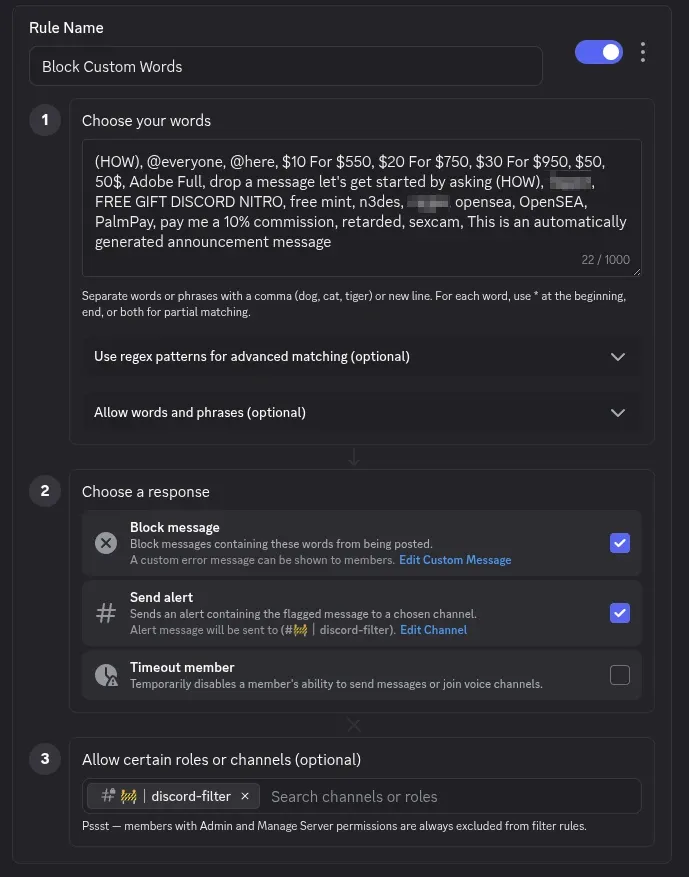
5. Create Custom Keyword Rules
This is where you invest the most time. Start with the terms and phrases that cause real problems in your community. Common starting points include:
- Scam mentions:
@everyoneand@hereare used in almost every scam message. Block them. - Scam phrases: "free nitro," "FREE GIFT DISCORD NITRO," "free mint," "claim your prize"
- Crypto and financial scams: "opensea," "$10 for $550," "pay me a 10% commission"
- Unwanted domains: specific URLs you want to block in certain channels
- Spam patterns: "This is an automatically generated announcement message," "drop a message let's get started"
Set the action to "Block Message" and "Send Alert." For channels where you want to block all links entirely, create a separate keyword rule with common URL patterns and scope it to those specific channels.
6. Set Up Member Profile Filtering
Add your server name, admin names, and any terms commonly used for impersonation. Enable "Block Member Interaction" so flagged users cannot participate until they change their profile.
7. Configure Sensitive Content Filters
Below the AutoMod rules, you will find a separate setting called "Sensitive content filters." This is Discord's image-based content filter. It scans images shared by members and flags media that may contain sensitive content. For Community servers, the only available option is "Filter messages from all members," which scans all image uploads across non-age-restricted channels.
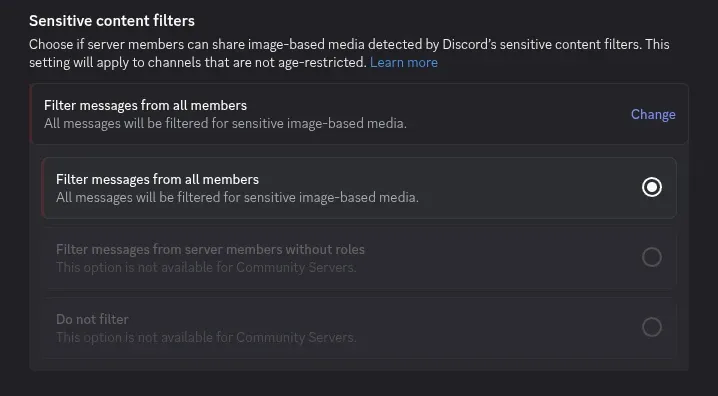
This is not the same as AutoMod's text-based keyword filtering. It specifically targets image content and is handled by Discord's own detection system. Keep it enabled. It is one of the few built-in tools that actually scans visual content.
Wildcards and Regex
Wildcards
Add an asterisk (*) to the beginning or end of a keyword to match partial words:
scam*catches "scammer," "scamming," "scams," and "scambot"*porn*catches any word containing "porn," including "pornography"*.gg/*catches Discord invite links and similar domains
Be careful with short wildcards. A pattern like *ass* would also block words like "class," "assignment," and "password." Test your wildcards from a non-moderator account before applying them broadly.
Regex Patterns
For more precise filtering, AutoMod supports regular expressions using Rust syntax. Key details:
- Maximum 10 regex patterns per rule, 260 characters each
- Case-insensitive and unicode support are enabled by default
- Rust flavor syntax (test with Rustexp before deploying)
Regex is especially useful for catching leetspeak bypasses. People often replace letters with numbers or symbols to slip past keyword filters. A pattern like (?i)^(n+)(i+)(..)(a+)(s+)$ matches common letter substitutions that a plain keyword filter would miss entirely.
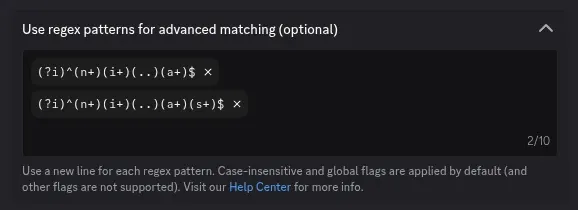
Each custom keyword rule supports up to 10 regex patterns of 260 characters each. You can also set up an allow list (up to 100 entries) for words that match your patterns but should not be blocked.
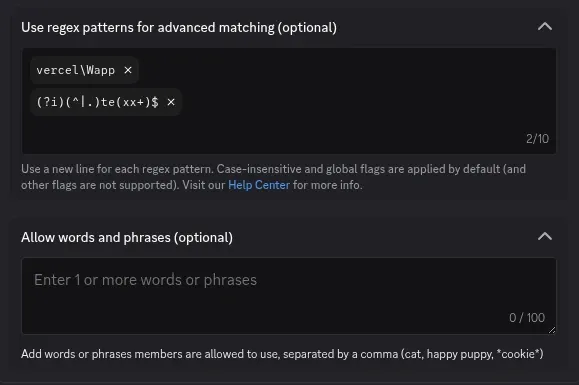
The community-maintained AutoMod Regex Generator can help you build patterns for common bypass attempts without writing regex from scratch.
Best Practices
Start with alerts before blocking. When you create a new rule, set it to "Send Alert" only for a few days. Watch the alerts channel to see what gets flagged. If you see too many false positives, adjust your keywords before enabling "Block Message." This saves you from accidentally blocking legitimate conversations.
Review your alerts channel regularly. AutoMod is not a set-and-forget system. New spam patterns show up constantly. Check what is getting blocked and what is slipping through. Add new keywords as new problems appear and remove ones that cause false positives.
Exempt your staff roles from every rule. Moderators and admins sometimes need to discuss rule-breaking content or test filters. Add your staff roles to the exemption list on each rule. Users with the Administrator permission are automatically exempt.
Use multiple custom keyword rules organized by category. Instead of putting everything in one rule, split them: one rule for scam phrases, one for offensive language, one for link filtering. This makes it easier to tune each category independently and see which rule triggers most often in your alerts channel.
Keep custom block messages short and clear. The 150-character limit forces brevity, which is a good thing. Tell users what happened and what to do about it. Something like "This message was blocked. Contact a moderator if this was a mistake." works better than a vague "Message blocked."
Common Mistakes to Avoid
These are the mistakes we see most often when server owners set up AutoMod for the first time:
- Enabling all three "Commonly Flagged Words" categories on day one. The presets are broad and will block normal messages. Your members will get frustrated, and you will spend time dealing with complaints instead of actual moderation. Start without them and build custom keyword rules instead.
- Not creating an alerts channel. Without alerts, you have no visibility into what AutoMod is catching. You cannot tell if your rules are working correctly or producing false positives.
- Setting mention spam too high. A limit of 50 means an attacker can still ping 49 people before getting blocked. For most servers, a limit between 4 and 20 is more practical.
- Forgetting to exempt staff roles. Your moderators will trigger their own filters when discussing rule-breaking content or testing new keywords. Add staff roles to the exemption list on every rule.
- Using only "Block Message" without "Send Alert." Blocking alone stops the content, but your team has no record of what happened. Always enable both so you can review and adjust.
- Adding short wildcards like
*ass*without testing. Wildcards on common letter combinations will block innocent words. Always test from a non-moderator account first.
The biggest mistake is treating AutoMod as set-and-forget. Spam patterns change constantly. Review your alerts channel at least once a week and update your keyword list when new patterns appear.
When Built-in AutoMod Is Not Enough
Discord AutoMod covers text-based filtering well, but it has limits that matter for active or growing servers:
- It cannot scan images or attachments. Crypto scam images, NSFW content, and malicious files pass through undetected.
- There is no raid detection. A wave of accounts joining and spamming simultaneously requires manual intervention or a bot with join tracking.
- There is no cross-channel tracking. A compromised account posting the same suspicious message in 5 different channels within a minute looks like 5 separate messages to AutoMod, not a coordinated attack.
- No case management. AutoMod logs actions to your alerts channel, but there is no searchable history, no case numbers, and no way to review a user's complete moderation record over time.
- No hacked account detection. Compromised accounts often post spam across multiple channels before anyone notices, and AutoMod evaluates each message in isolation.
This matches what server owners consistently report. As one Reddit user put it when asked about crypto image spam: "Unfortunately, AutoMod cannot deal with those. Maybe in the future." Image-based scams are one of the most common attacks right now, and AutoMod simply cannot see them.
This is where moderation bots fill the gap. Bots like Valt add features that AutoMod cannot provide on its own: raid protection, hacked account detection, full case history with searchable records, and a real-time dashboard where your team can moderate from a browser instead of scrolling through Discord channels. AutoMod and a moderation bot work best as a pair. Let AutoMod handle the instant text filtering while your bot manages the complex scenarios that require context and history.
If you are running a server with more than a few hundred members, combining both is worth the effort. AutoMod catches the obvious stuff immediately, and your bot handles everything else. You can read more about what a dashboard-first bot offers in our introduction to Valt.
Frequently Asked Questions
Does Discord AutoMod work on all servers?
Yes. AutoMod is available on every Discord server, regardless of size or boost level. You need the "Manage Server" or "Administrator" permission to set it up. Community servers get access to all five rule types, while non-community servers get four (the spam detection rule requires Community to be enabled).
Can AutoMod detect images or videos?
No. AutoMod only scans text content in messages, usernames, and display names. It cannot analyze images, videos, attachments, or embedded content. For image-based spam (like crypto scam screenshots), you need a moderation bot with image scanning capabilities.
How many custom keyword rules can I create?
You can create up to 6 custom keyword rules per server. Each rule supports up to 1,000 keyword entries (60 characters each) and 10 regex patterns (260 characters each). Combined, that gives you 6,000 keywords and 60 regex patterns across all your custom rules.
Does AutoMod apply to messages from bots?
No. Messages sent by bots and webhooks are not checked by AutoMod. This is by design, since bots often need to post content that might otherwise trigger filters (like logging moderation actions or relaying messages). Only messages from regular user accounts are scanned.
Can I use AutoMod and a moderation bot at the same time?
Yes, and it is recommended for most servers. AutoMod handles instant text filtering directly on Discord's servers, which is faster than any bot. A moderation bot adds features AutoMod lacks: raid detection, case management, image scanning, cross-channel tracking, and dashboards. They complement each other without conflicts.
What happens when AutoMod blocks a message?
The message is never posted to the channel. Only the sender sees a notification explaining that their message was blocked, along with your custom message if you set one. Other members in the channel see nothing. If you enabled the "Send Alert" action, a log entry is sent to your alerts channel with the message content, the user, and which rule triggered.
Can AutoMod block Discord invite links?
Yes. Add invite link patterns to a custom keyword rule. A wildcard like *.gg/* catches most Discord invite links. You can also add discord.gg and discord.com/invite as plain keywords. For more precision, use a regex pattern. You can scope this rule to specific channels if you want to allow invite links in certain places but block them elsewhere.
Does AutoMod work in forum channels and threads?
Yes. AutoMod scans messages in all text-based channels, including forum posts, threads, and Stage channels. The same rules apply everywhere. If you need different filtering in different channels, use the channel exemption list to exclude specific channels from a rule, or create separate keyword rules scoped to specific channels.
Need more than AutoMod?
Valt combines auto-moderation with raid protection, case management, and a real-time dashboard. A private, all-in-one Discord management tool built for serious communities. Access is by arrangement.
Request access Get in touch